EARLY ACCESS · IPHONE SETUP
Get started with Rayvik.
First, install TestFlight, Apple’s free app for trying beta apps. Then use the link in your Rayvik invitation email to install Rayvik.
Once your beta application is approved, we’ll email a TestFlight link and a separate Rayvik invitation code to the address you signed up with.
Get TestFlight
Open the App Store link below on your iPhone and download TestFlight by Apple. Already installed it? Move on to step 2.
Get TestFlight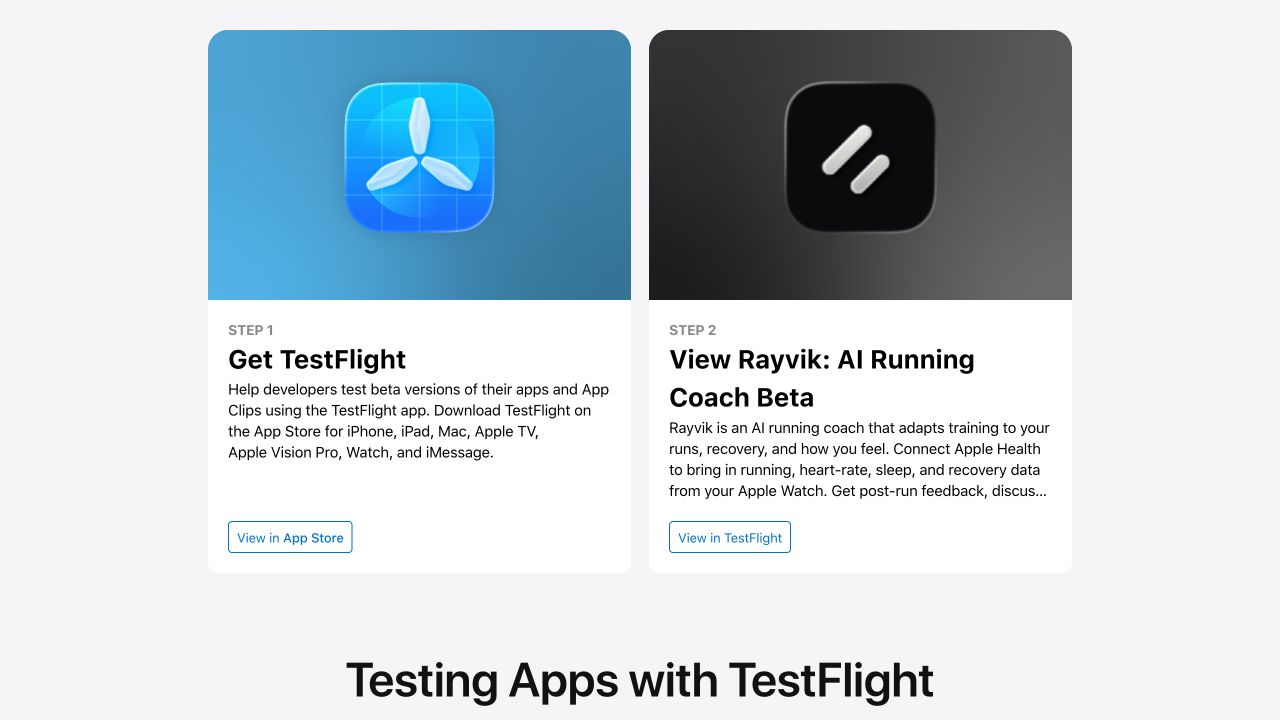
Install Rayvik
On your iPhone, open the TestFlight link in your Rayvik invitation email. On Apple’s invitation page, choose View in TestFlight to open Rayvik in TestFlight.
Accept the invitation if prompted, then tap Install. Once it’s ready, tap Open.
Reading on a computer? Open the invitation email on your iPhone to install Rayvik.
Set up Rayvik
- Enter the Rayvik invitation code from your email inside the Rayvik app.
- Continue with Sign in with Apple.
- Follow setup to connect Apple Health and tell your AI coach about your running goals.
Your Rayvik code belongs in Rayvik. You don’t need to enter it in TestFlight’s Redeem screen.
An Apple Watch with recent running and sleep records helps personalize your coaching.

YOUR FIRST CONVERSATION
“I can run three times a week and want to work toward a 5K. Help me get started.”
Start with a conversation. After your next Apple Watch run syncs to Apple Health, check Rayvik for your post-run feedback.
BETA FEEDBACK
Tell us how it feels.
A useful insight, a confusing screen, something that broke—we’d love to hear it. In TestFlight, open Rayvik and tap Send Beta Feedback, or email us.